
53 lines
1.8 KiB
Plaintext
53 lines
1.8 KiB
Plaintext
---
|
|
title : Sandbox
|
|
description : Test sandbox untuk development dengan simulator Tripay.
|
|
date : 15-04-2025
|
|
---
|
|
|
|
<Note type="note" title="Note">
|
|
Tripay menyediakan fitur simulator untuk melakukan test api melalui sandbox
|
|
</Note>
|
|
|
|
## Simulator
|
|
|
|
<Stepper>
|
|
<StepperItem title="Step 1: Dashboard Tripay">
|
|
Login terlebih dahulu melalui url [https://tripay.id/login](https://tripay.id/login).
|
|
</StepperItem>
|
|
<StepperItem title="Step 2: API & Integrasi">
|
|
Pada halaman dashboard navigasi ke menu API & Integrasi.
|
|
</StepperItem>
|
|
<StepperItem title="Step 3: Simulator">
|
|
Kemudian pilih menu simulator.
|
|
</StepperItem>
|
|
<StepperItem title="Step 4: Merchant">
|
|
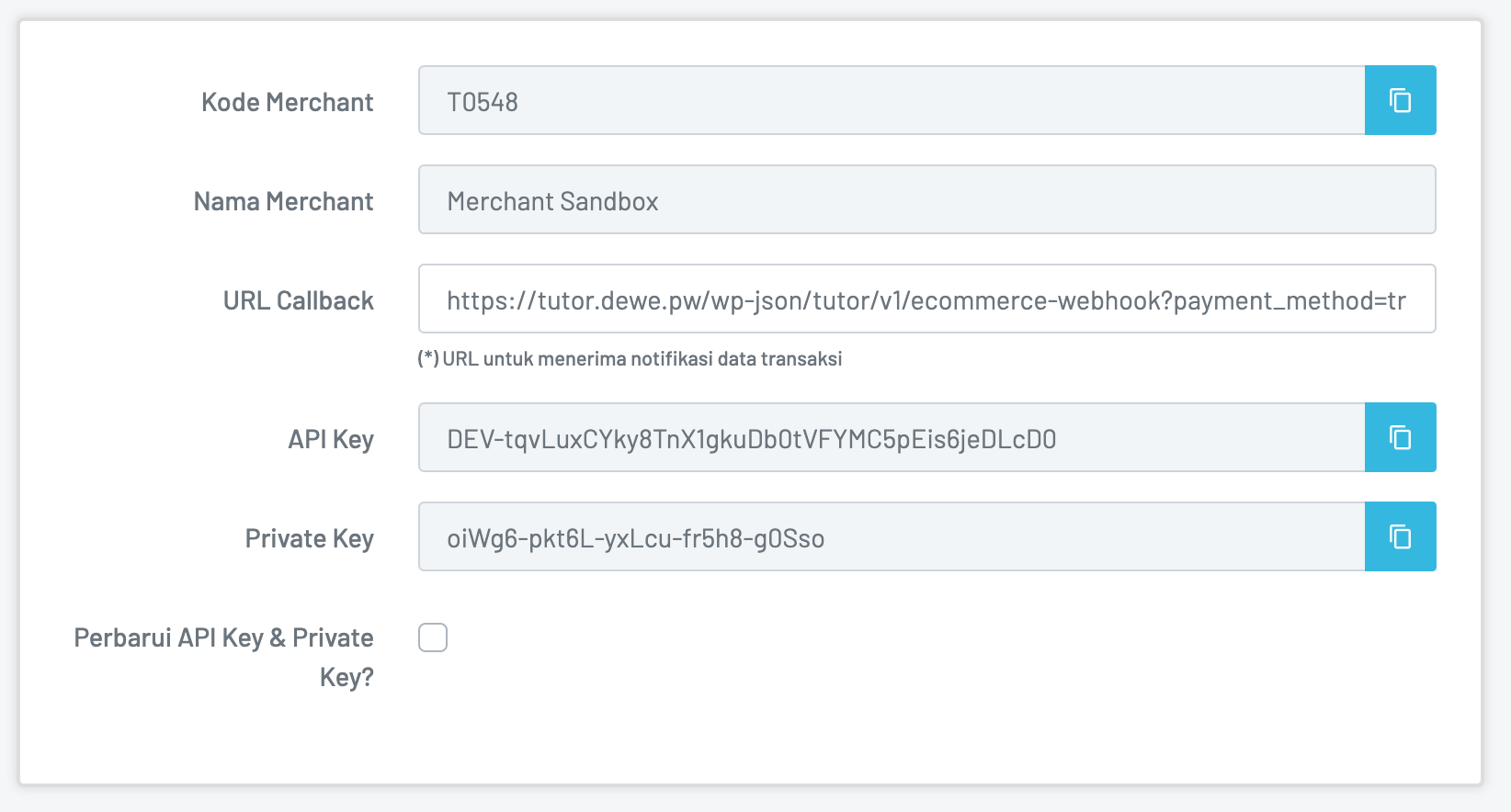
Pada halaman simulator navigasi ke menu `Merchant` --> `Detail`
|
|
|
|
</StepperItem>
|
|
</Stepper>
|
|
|
|
## Settings
|
|
|
|
<Stepper>
|
|
<StepperItem title="Step 1: Dashboard wp-admin">
|
|
Masuk ke halaman dashboard wp-admin.
|
|
</StepperItem>
|
|
<StepperItem title="Step 2: Tutor LMS">
|
|
Pada halaman dashboard wp-admin navigasi ke menu `Tutor LMS` --> `Settings`
|
|
</StepperItem>
|
|
<StepperItem title="Step 3: Payment Methods">
|
|
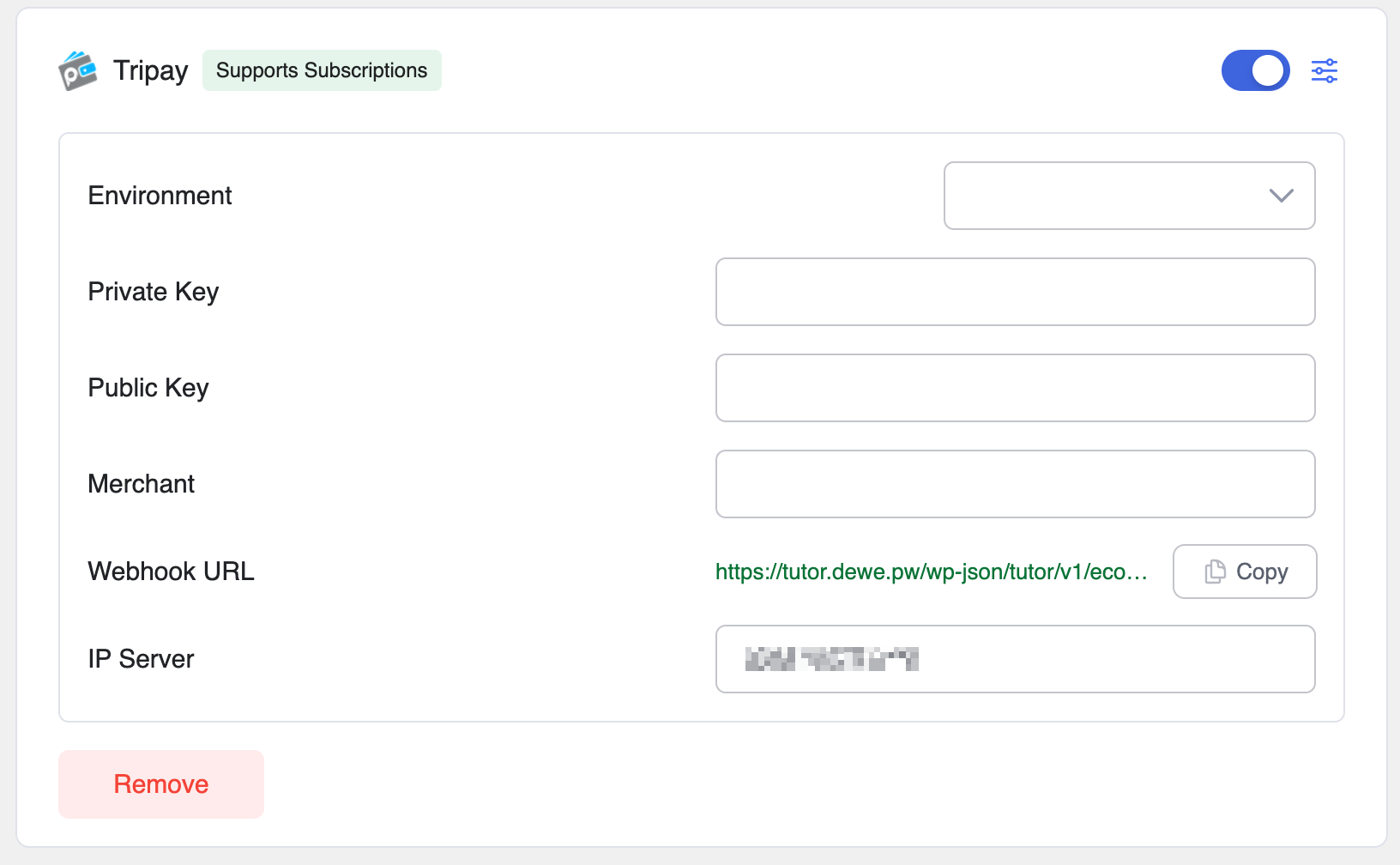
Pada halaman settings pilih menu `Payment Methods` (jika anda telah menginstal plugin Tutor Addons - Tripay maka akan muncul **Tripay**).
|
|
|
|
</StepperItem>
|
|
<StepperItem title="Step 4: Environment">
|
|
Pilih environment `sandbox` & isi private key, public key (isi dengan API key), merchant (kode merchant).
|
|
Copy `Webhook URL` yang akan digunakan sebagai URL callback pada Merchant di dashboard Tripay.
|
|
</StepperItem>
|
|
</Stepper>
|
|
|
|
## Video Tutorial
|
|
|
|
<Accordion title="API Sandbox" defaultOpen={true}>
|
|
<Youtube videoId="KzD4FxFDKE0" />
|
|
</Accordion>
|